

April 2025 Product Release Notes
AI Assistant: Automatic Conversation Clearing
When chat history gets too long, it can confuse the LLM (large language model), leading to less accurate, less relevant, or slower responses. To tackle this, we're excited to introduce a new feature within our AI Assistant: Automatic Conversation Clearing!
- Conversations are automatically cleared every 24 hours ⏰
With our latest update, your chat history will now be automatically cleared every 24 hours. This means that any conversation older than a day will be removed from the chatbot's memory, ensuring that your interactions remain relevant and up-to-date. - The most recent conversation topic will always stay in context. 🧠
Even if a conversation spans multiple days, the most recent conversation will continue to be included in the model’s context. This overrides the standard 24-hour lookback window. - You can also clear the conversation history yourself 🗑
If you need to clear memory faster, simply tell your AI Assistant in your own words—it's smart and will understand commands like "reset chat," "clear context," "start over," "restart," or "refresh context". This user-initiated clearing will lead to a true blank state
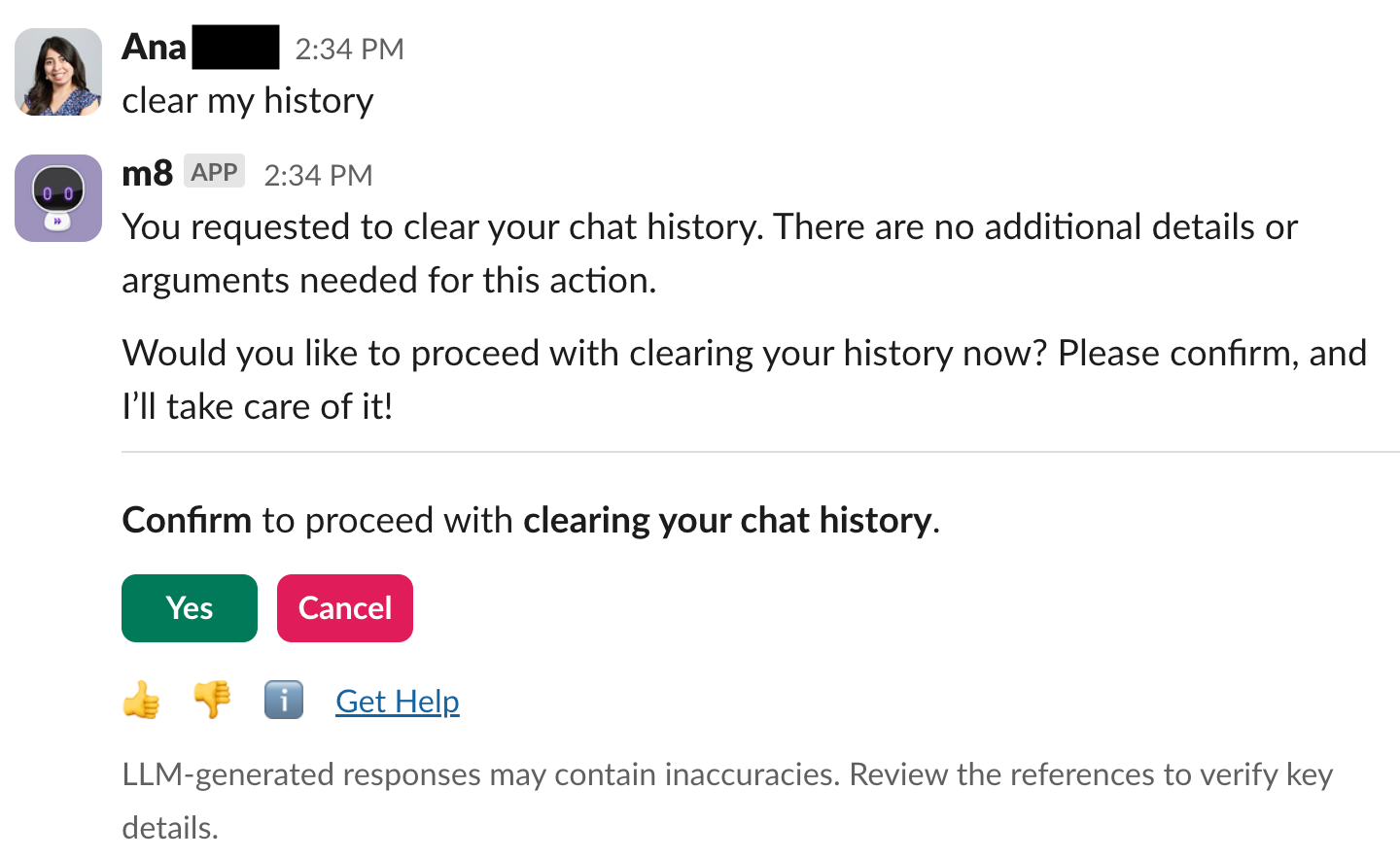
We've created an Employee Comms template you can use to spread the word here.
AI Assistant: Revamped experience for References, Get Help, and Feedback
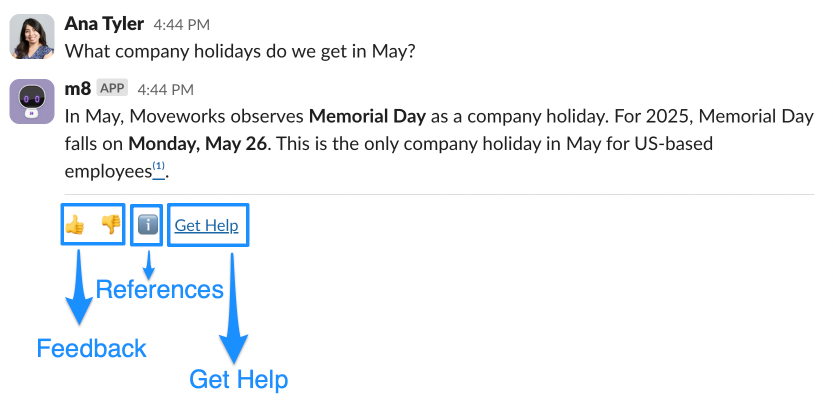
Interacting with our AI chatbot used to mean scrolling through a long, sometimes overwhelming page to find what you needed — whether it was citations, feedback, or support options. We’re making it much easier to navigate by breaking things into simple, clear sections.
What’s New:
Now, everything is just a click away with our new 3-tab experience:
-
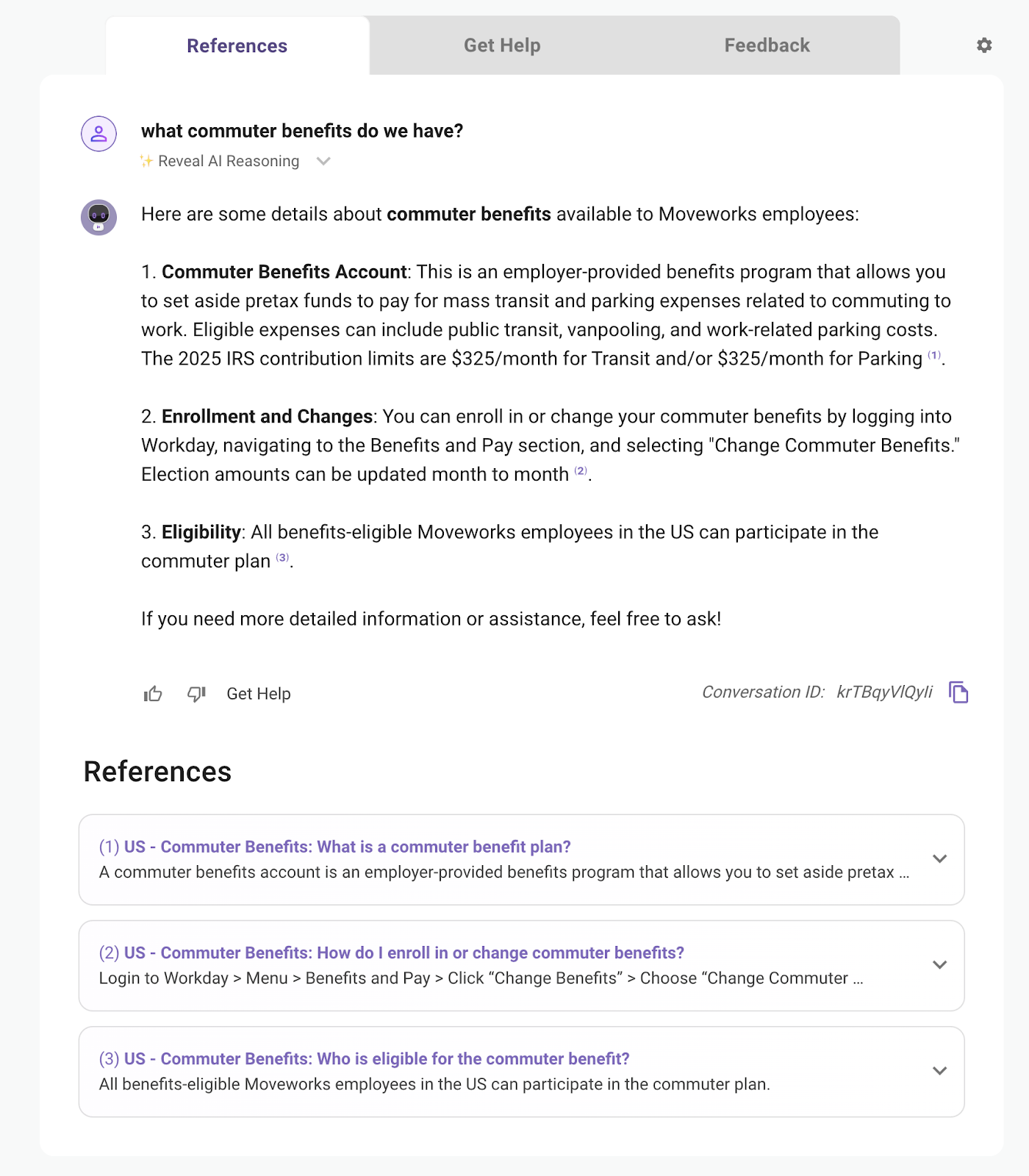
References: Instantly view the sources behind the bot’s response
-
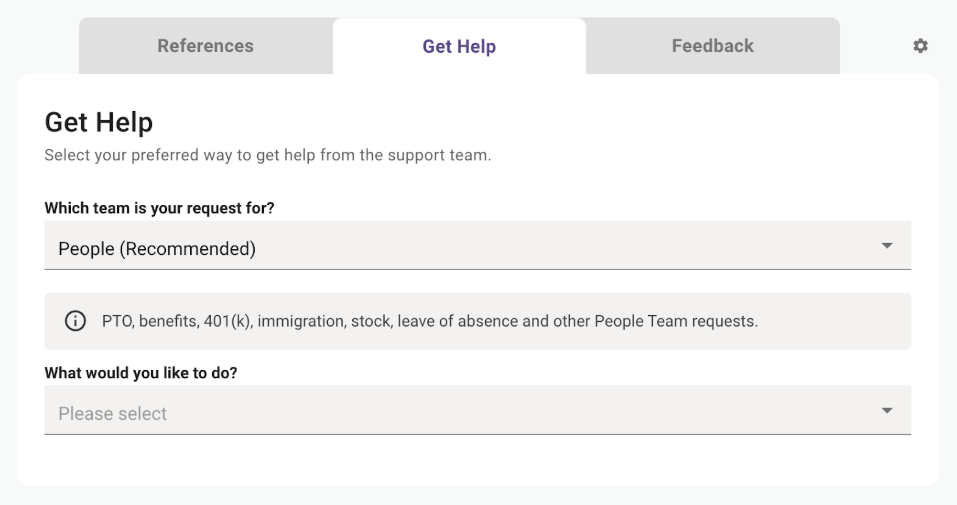
Get Help: Quickly file a support ticket — or, for some customers, connect directly with a live agent.
-
👍 👎 Feedback: Easily submit in-app feedback with a thumbs up or down.
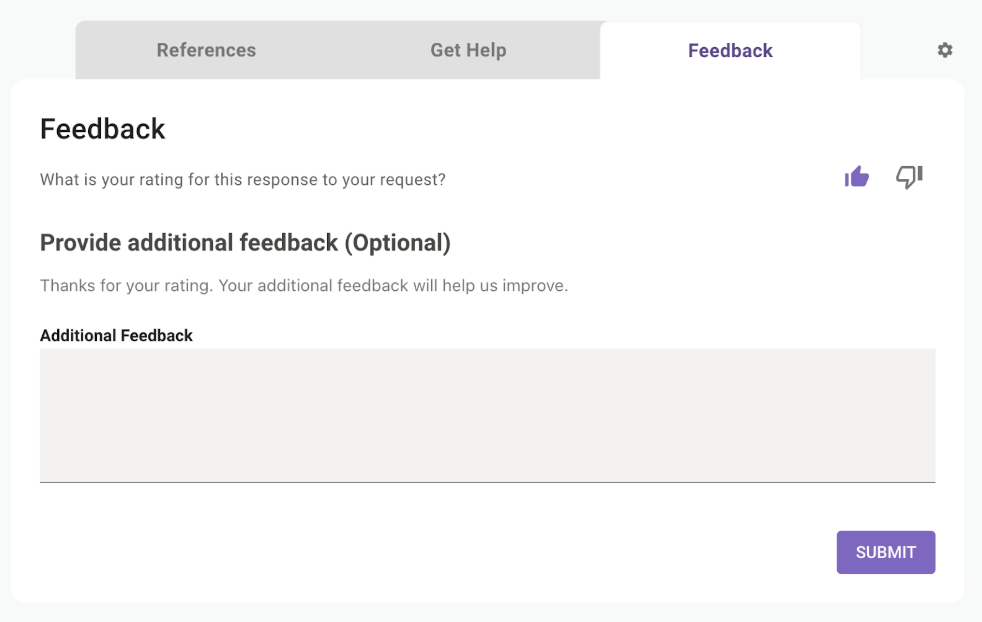
👉Note: This is just a visual update — the AI Assistant behavior and responses aren't changing. The entry point for this experience also does not change. Depending on which entry point you select (ex. Thumbs up/ Thumbs down) you’ll be automatically navigated to the right tab (ex. “Feedback” tab).
AI Assistant: Additional Smart Handoff Enhancements
We rolled out two updates that will improve the Smart Handoff experience — making it more customizable and less disruptive for your employees.
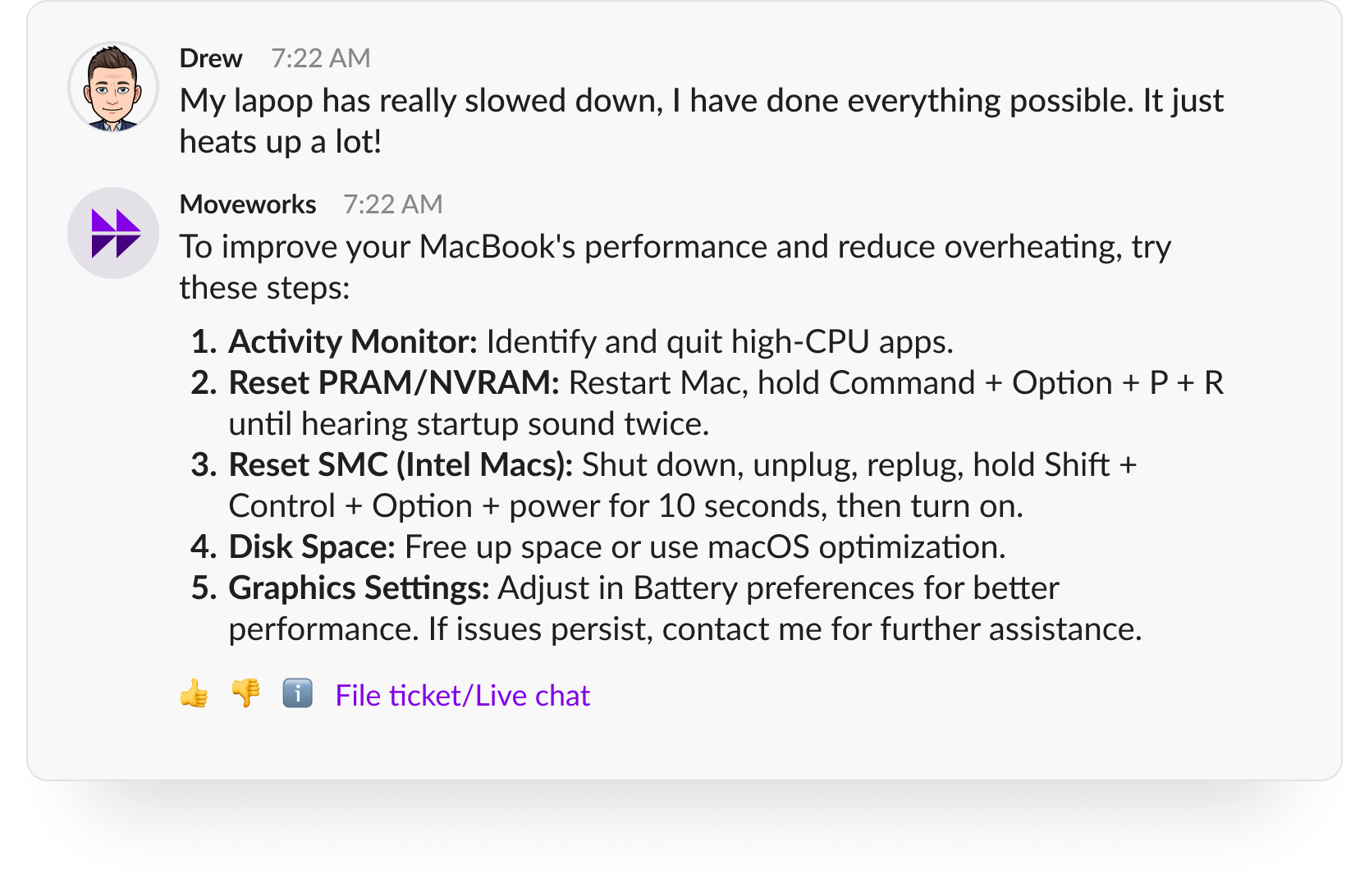
Customize the “Get Help” Link Label 📝
You’ll now be able to rename the “Get Help” link to better match your company terminology. Prefer “File Ticket”, “Live Chat” or “File ticket/Live chat”? Go for it — it’s all up to you. We’ll share configuration details soon.
No Redundant “Get Help” Links 🖇
We’ve improved the logic behind when the “Get Help” (or your custom label) link appears. If a user is already confirming they want to file a ticket or chat with a live agent, there’s no need to show the link again — so we don’t.
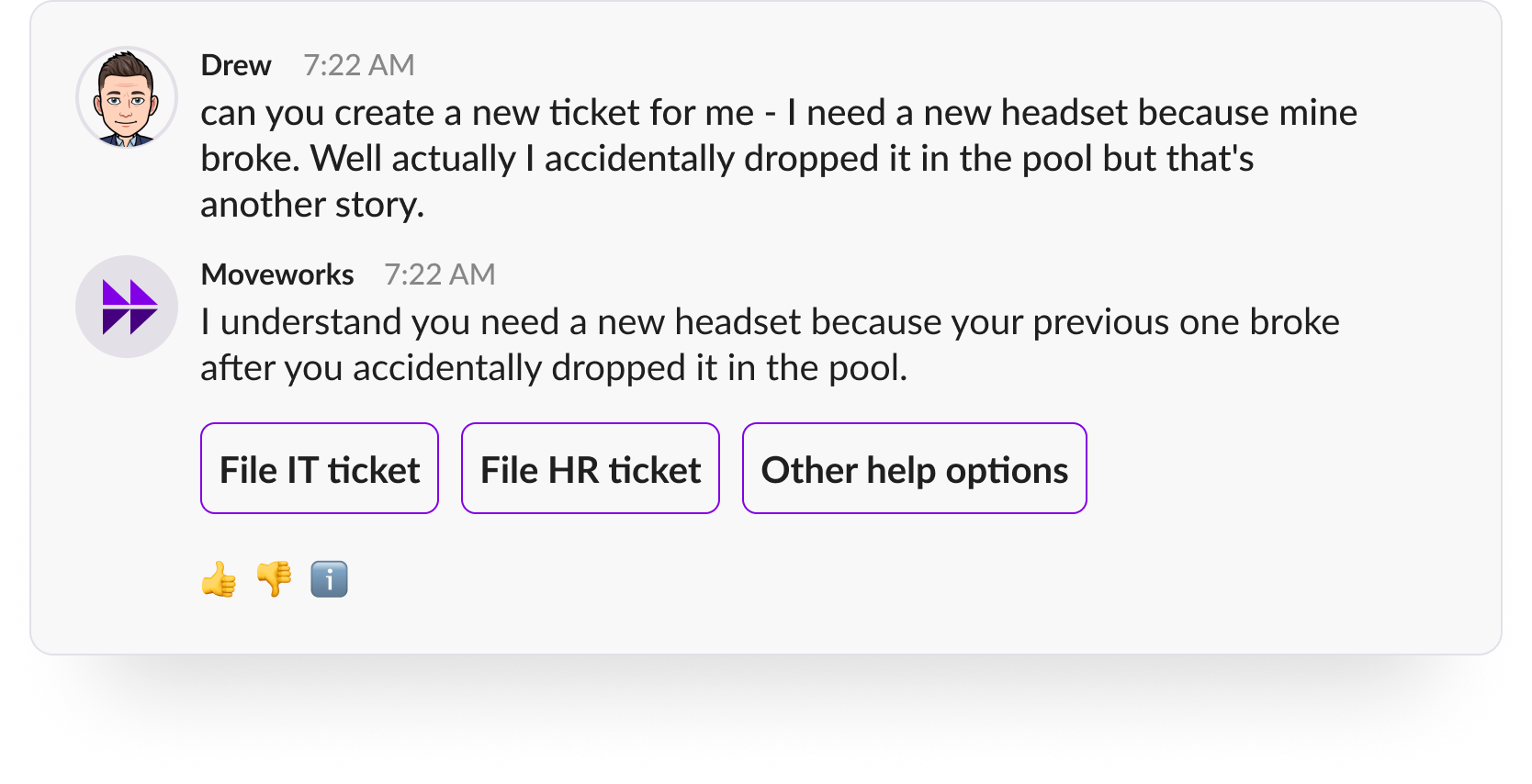
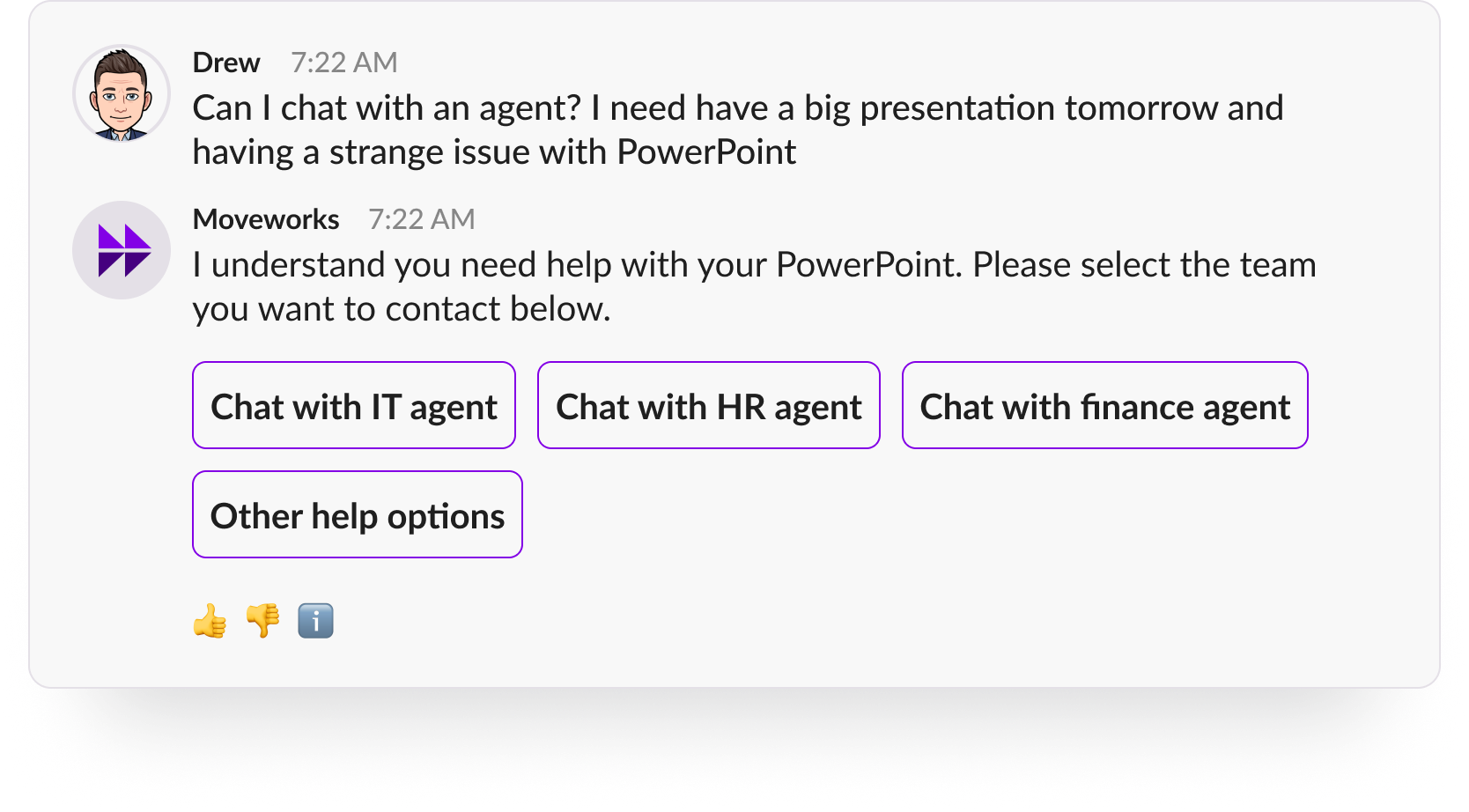
👉Note: If you’ve customized the label from “Get Help” to something like “File a Ticket,” “Live Chat,” or “Need Support,” the same logic applies: the link will be hidden in situations where it would be redundant.
AI Assistant: Update needed for Microsoft Teams customer
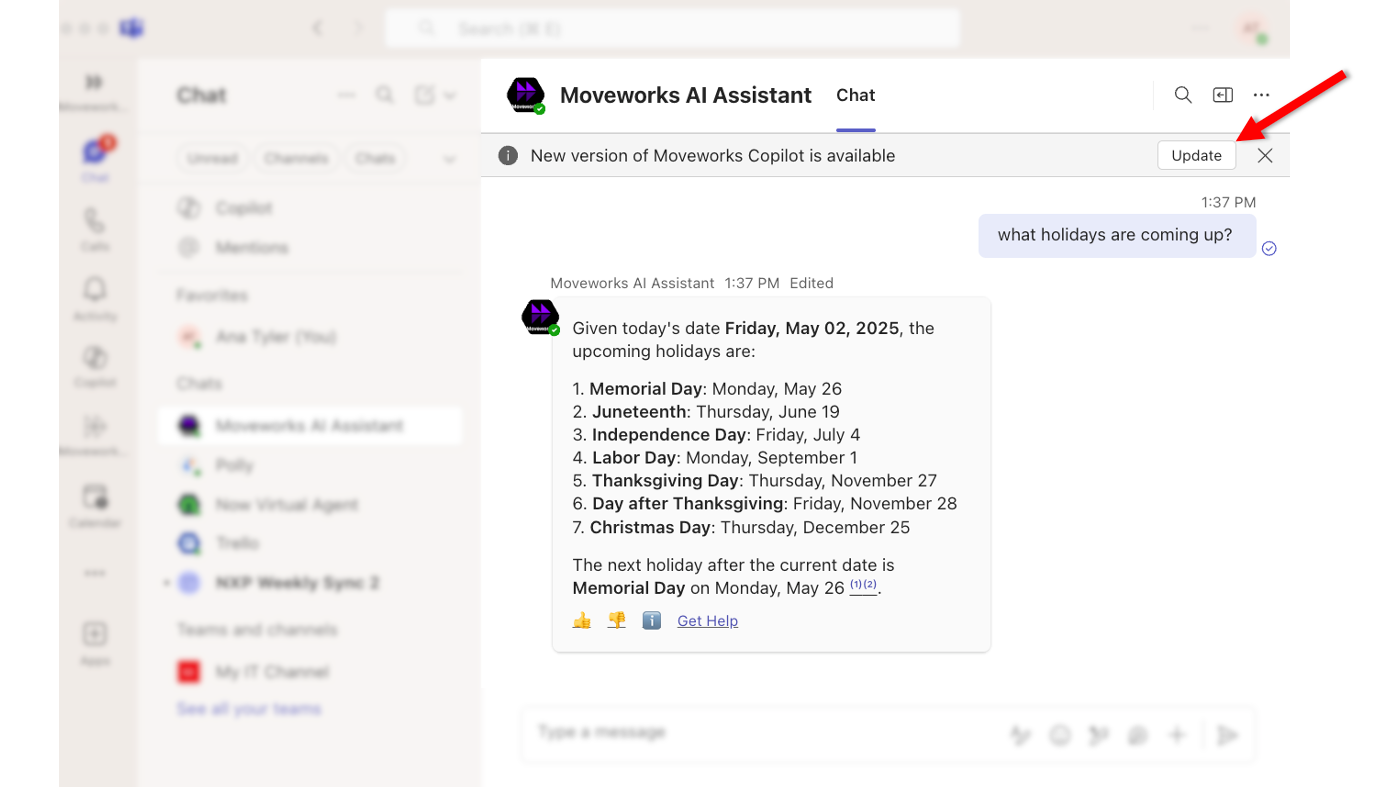
Earlier this year we encountered an issue with Microsoft Teams that caused problems for all our Microsoft Teams customers. We’ve been partnering closely with Microsoft Teams about this issue and they recently rolled out an update that would fix the problem.
Unfortunately the solution requires that all of your employees to update their Moveworks AI Assistant application. We’ve been informed by Microsoft Teams that this update has now been rolled out to all of our customers. Below is a screenshot showing a banner with an “Update” button that will appear for all your employees within your assistant application.
We understand this is not ideal and apologize for any issues that have been caused due to this update.
What was the issue?
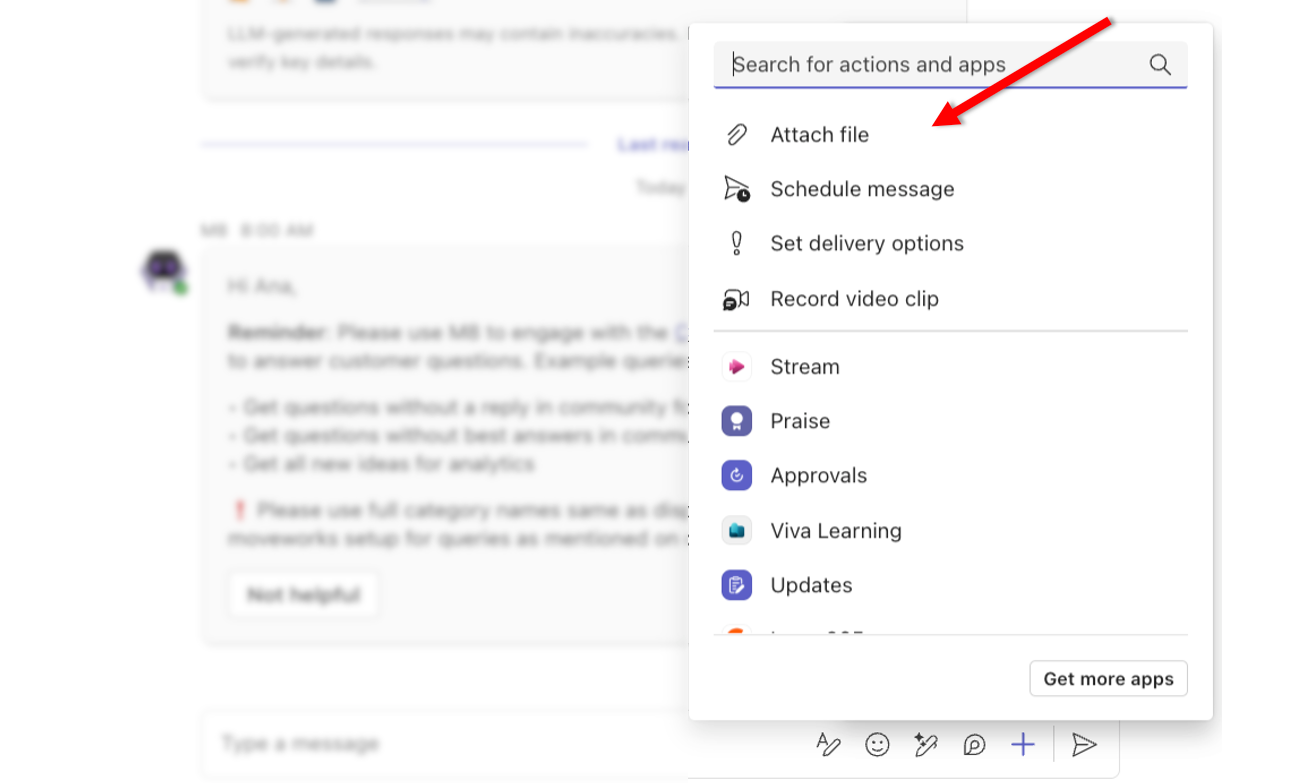
Microsoft Teams rolled out an update in February 2025 that caused issues with the attachment button within our Moveworks AI Assistant application. Customers started reporting that the following issues with the attachment button within their assistant:
- Users were not able to see the “Attach file” button.
- Users would notice that the “Attach file” button would appear and then disappear.
Brief Me: Instant File Deletion
Now when your employees are using Brief Me, any files that are uploaded with your AI Assistant are automatically deleted across all of our backend services within 24 hours.
Within the experience you’ll notice these updates:
-
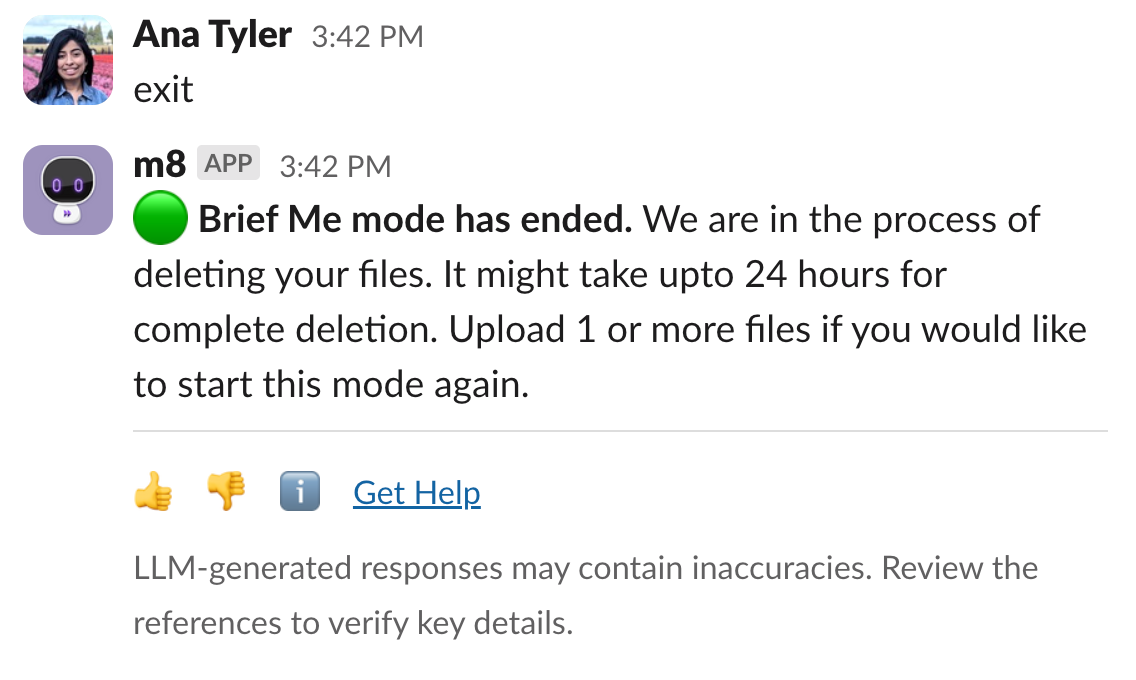
When your employees exit Brief Me, any uploaded files within their session will automatically be deleted. Users will see an updated message about this.
-
If your employees forget to exit Brief Me and it’s been more than 24 hours since they’ve uploaded a file(s), they won't be able to continue using those files for their Brief Me session and will need to re upload new files.
Moveworks Setup: Smart DSL Builder & Evaluator
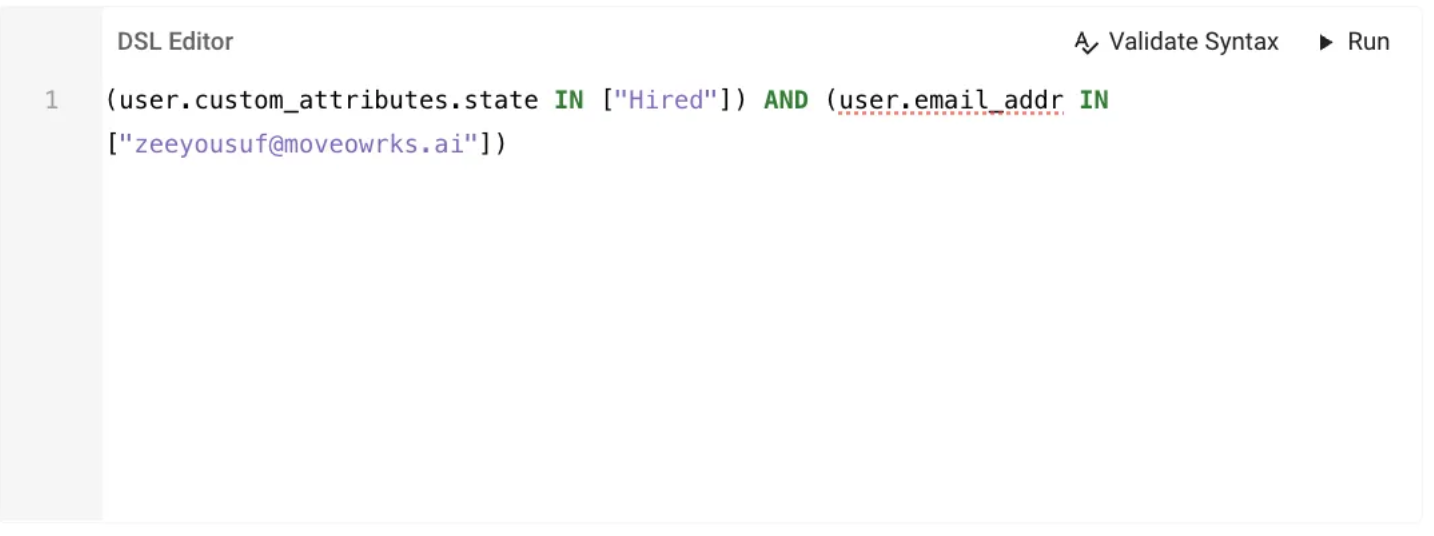
DSL Builder and Evaluator is a feature designed to simplify the creation, modification, and testing of DSL rules across the Moveworks Setup.
What's new?
-
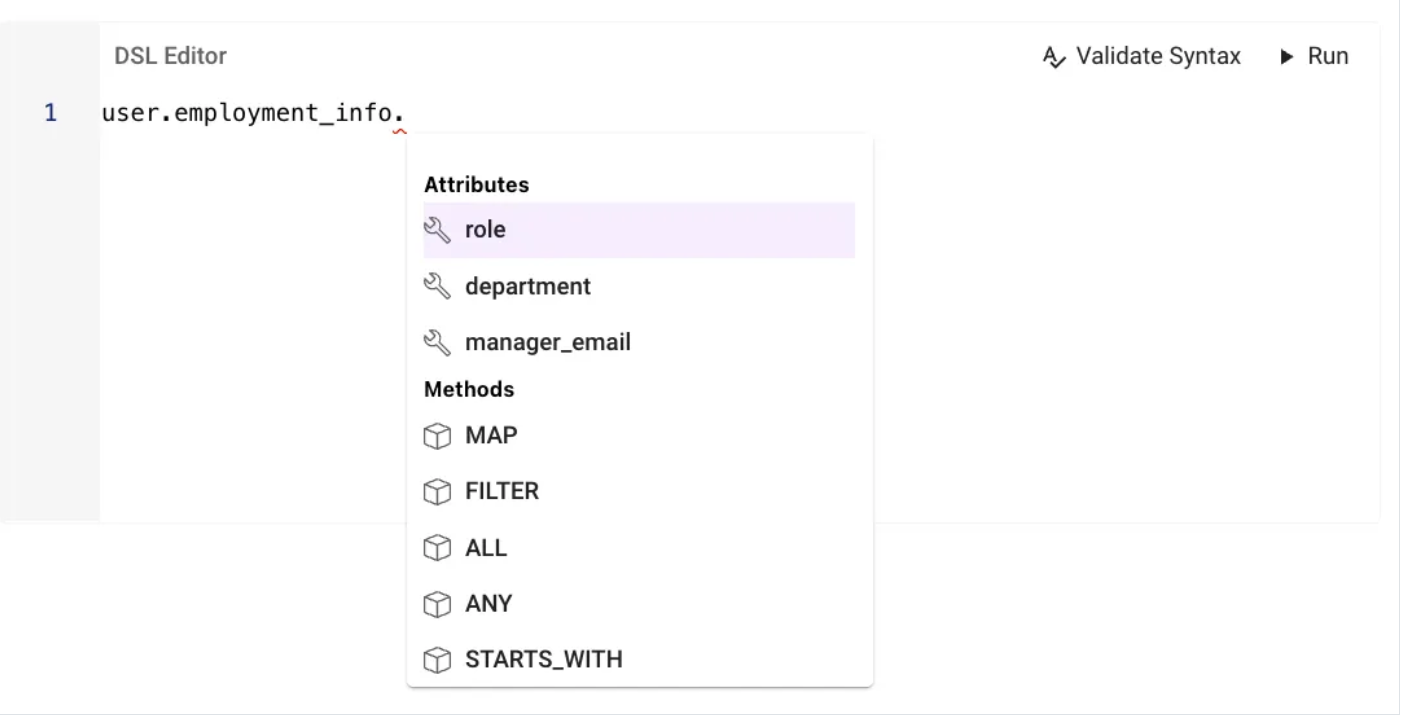
A sufficiently trained admin/user can now configure DSL rules across Setup, we now provide attribute suggestions in each DSL rule so users are clear on what rules or contexts can be supported in that field.📍
-
Users can now test their DSL rule real time in contexts of User, Tickets, Resource, Approvals etc. 🚀
-
Users no longer need to rely heavily on CSE, Support or documentation for authoring DSL Rules, as the autocomplete feature now provides what the probable rule would be depending on the attribute selected.
Please refer to the following ressources to start using this feature:
- DSL Builder and Validator
- DSL Rules across Setup Plugins
- Custom Attributes in Moveworks (Used heavily in DSL rules)
Moveworks Setup: Lots of new configurations available
-
New Workday Configs
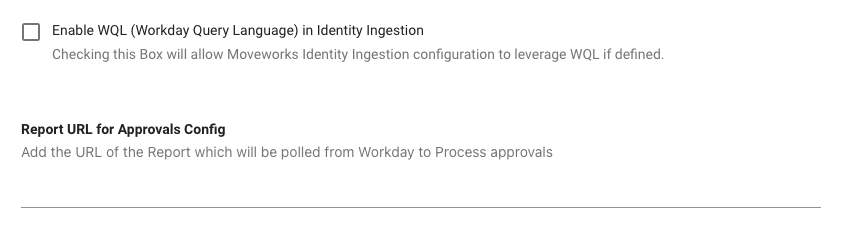
Enable WQLcheckbox andReport URL for Approvals configare now available under Setup → Connectors → Built-in connectors → Workday System Connector- Enable WQL - Checking this Box will allow Moveworks Identity Ingestion configuration to leverage WQL (if defined)
- Report URL for Approvals config - This config can be used to add the URL of the report which will be polled from Workday to process approvals
-
New JIRA Service Desk Configs
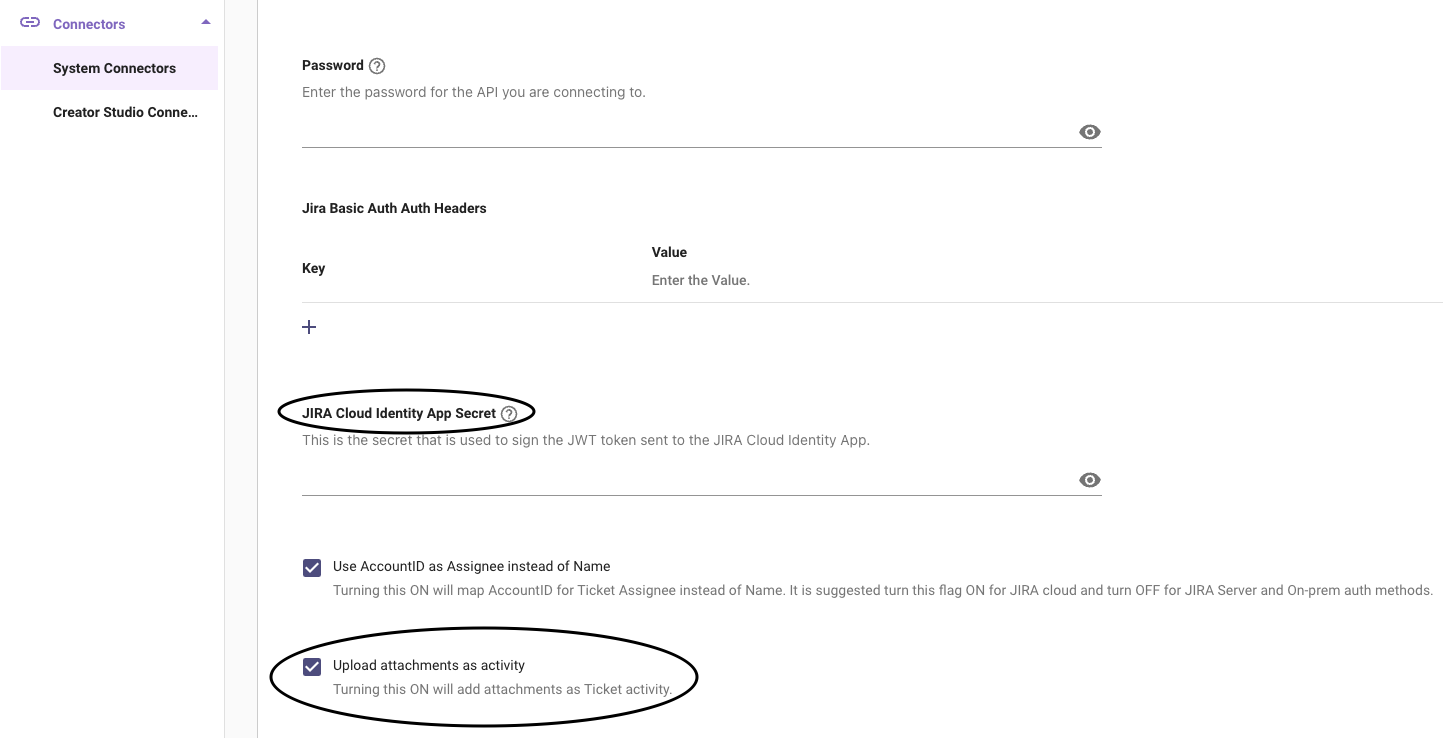
JIRA Cloud Identity App SecretandUpload Attachments as Activityare not available under Setup → Connectors → System Connectors → Jira Service Desk.- JIRA Cloud Identity App Secret - this is the client secret key used to sign the JWT token sent for authentication with the JIRA Cloud Identity App
- Upload Attachments as Activity - Checkbox used to allow attachments for tickets (attachments will be considered as ticket activities).
- GDPR Mode configuration in JIRA is now automatically enabled for Cloud and disabled for JIRA On-Prem. This is no longer a toggle but a fixed setting based on the deployment type.
-
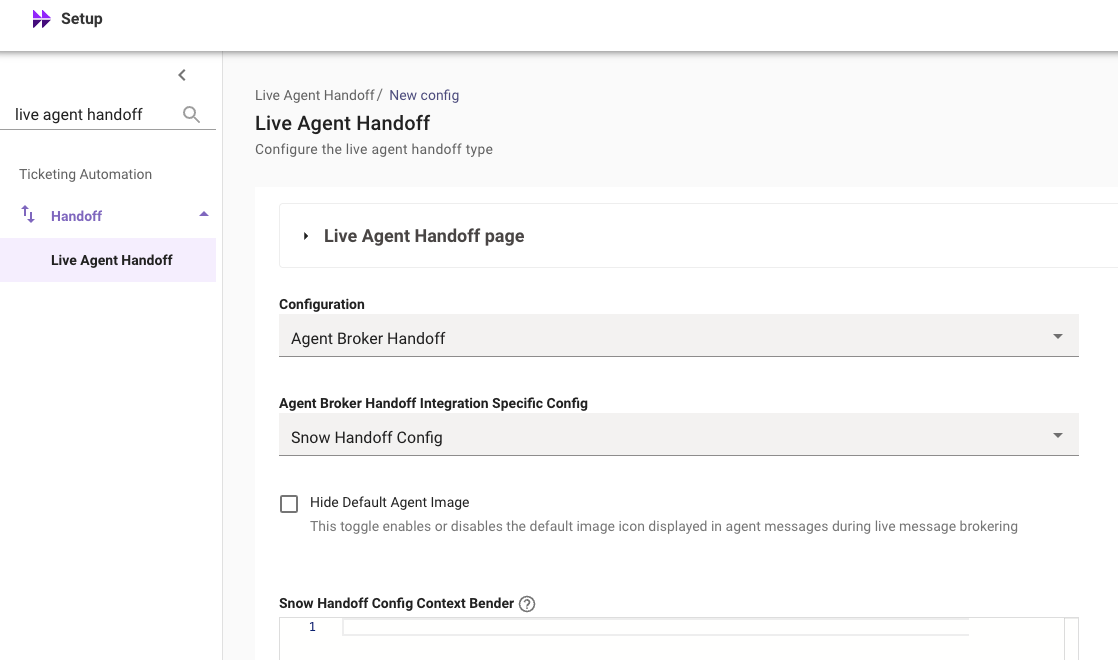
Hide Default Agent Imageis now available under Snow Handoff Config in Setup → Handoff → Live Agent Handoff → Agent Broker Handoff configuration.- Hide Default Agent Image - This checkbox enables or disables the default agent image icon displayed in messages during live message brokering.
-
Dedicated page for
Bot Accessadded under User IdentityA dedicated Bot Access page has now been introduced under Setup → User Identity, allowing users to configure the Bot Access Rule.
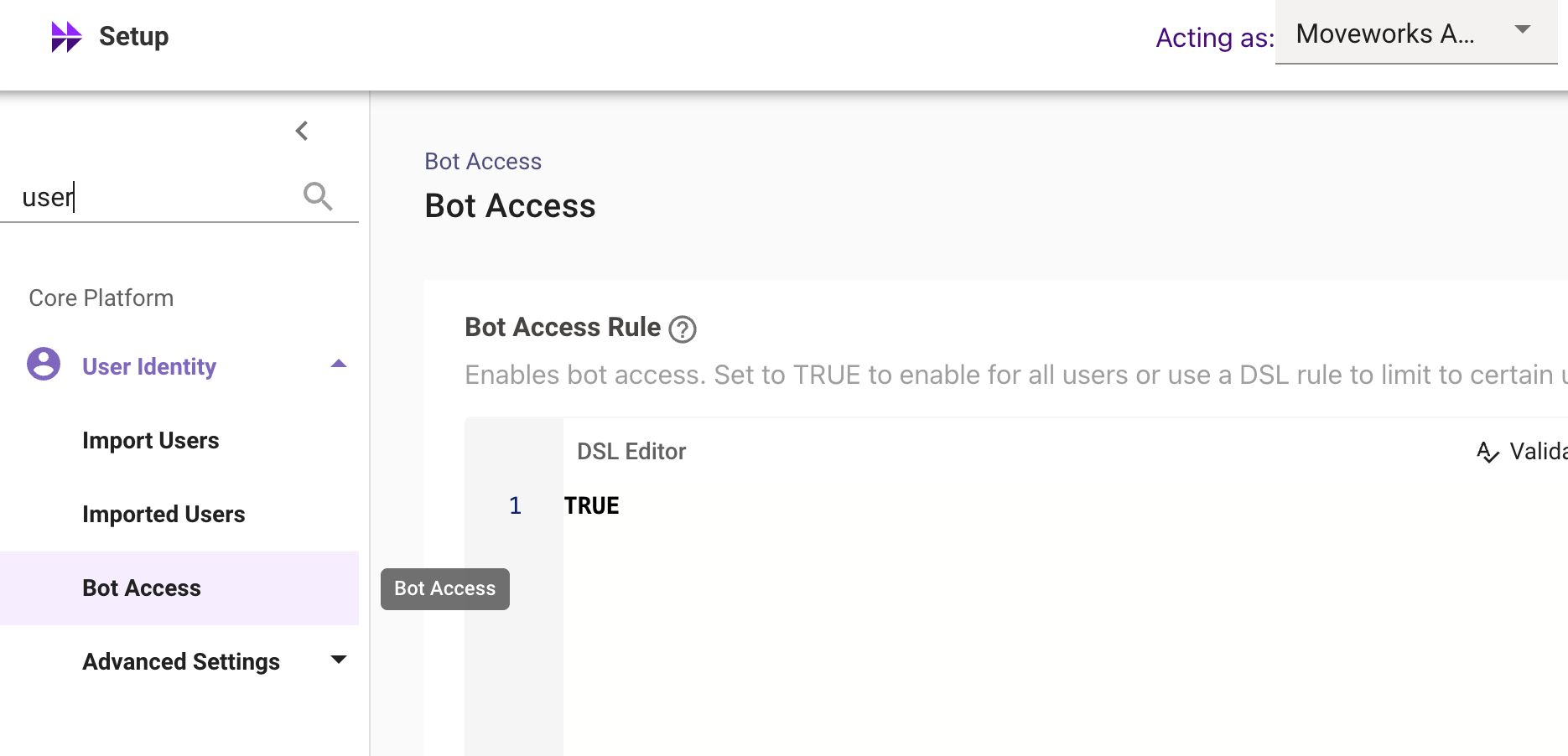
This was previously located under User Identity → Advanced Settings → Plugin Settings.
-
Respect Geocodeconfiguration moved under TicketingThe
Respect user geocode when resolving weekend hoursconfiguration has now been moved to Ticketing → Concierge Settings → Notification Settings, since it is a notification setting rather than a bot setting.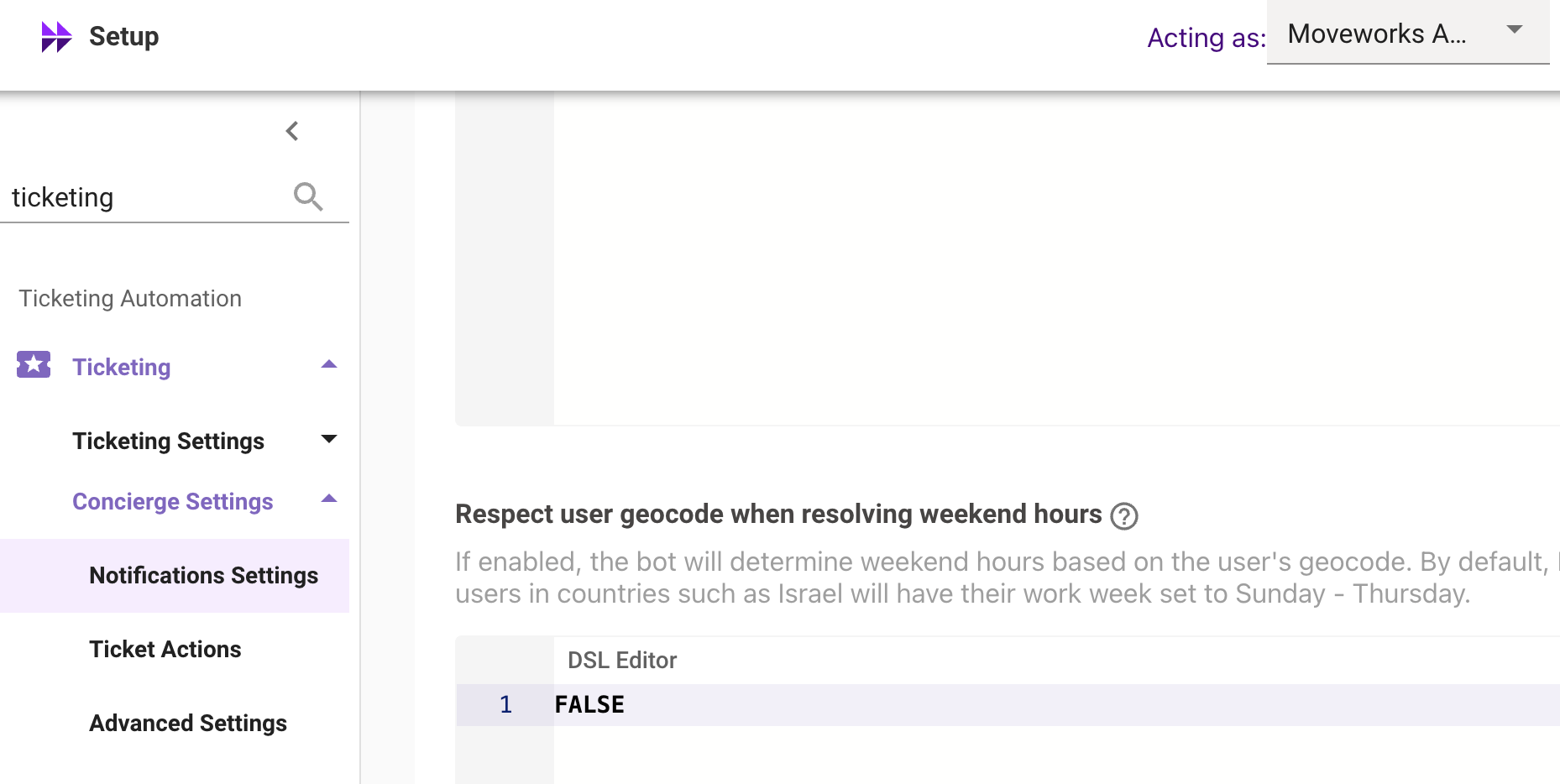
-
NAT Gatewayis now available in the GovCloud environment under Setup → Tenant Settings → General Information → Network details Section. The NAT Gateway section lists the Static IPs that identify requests originating from Moveworks core platforms & services.
For more information on IP Address allowlisting, please read our Network Allowlisting documentation.
Moveworks Setup: Data Retention changes in Moveworks Setup Audit Logs
As we move to a new infrastructure, the config and permission logs data before March 11th 2024 will no longer be available under MW Setup → Audit → Configuration Logs, Permission Logs
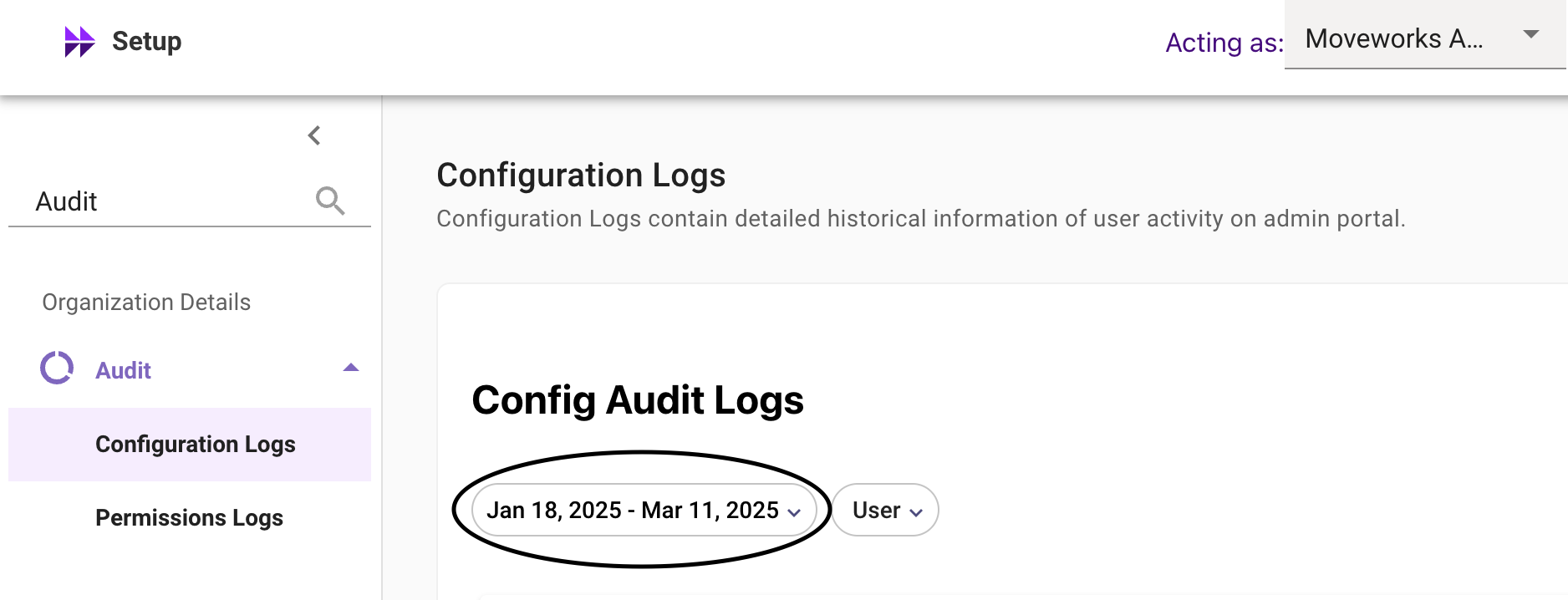
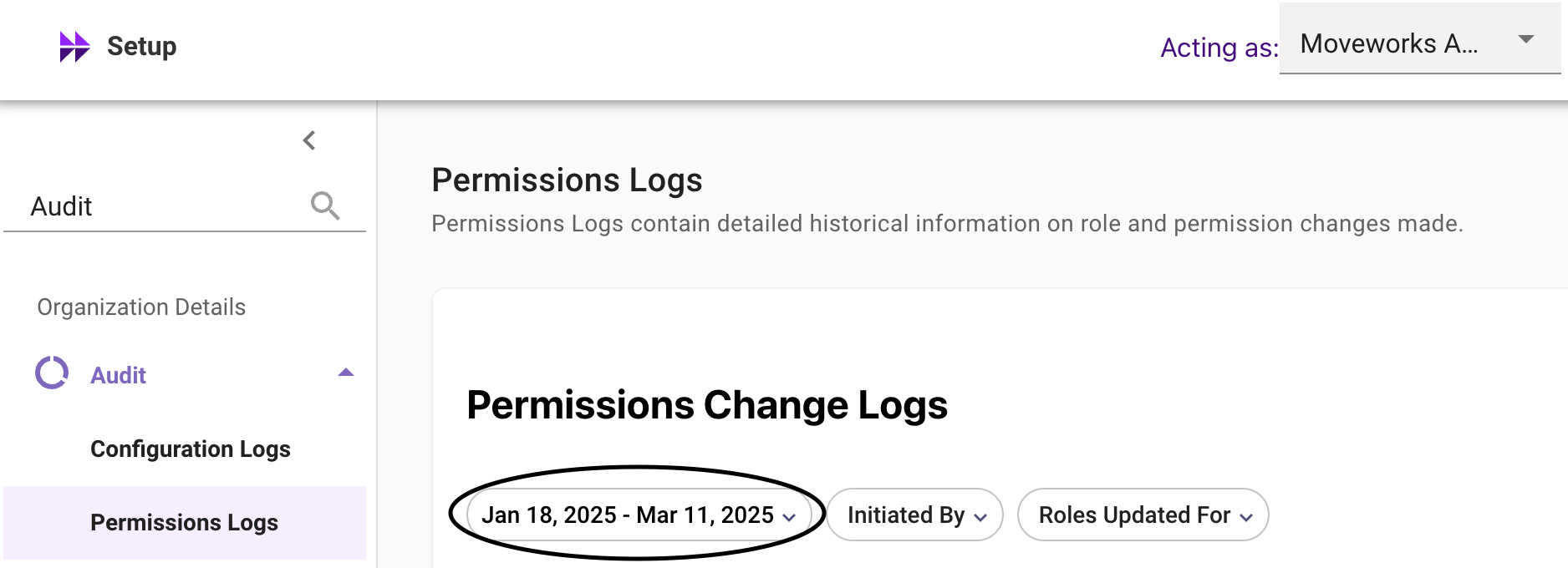
👉Note our data retention period remains 60 days. The first full retention cycle will end on May 11th, after which data will be retained on a rolling basis.