


A new Moveworks Assistant experience in Slack, rolling out October 19 to 29!
The Moveworks Assistant in Slack is getting a faster, clearer experience! Answers stream in as they are written, employees can see what the Assistant is working on, tables display cleanly, and live agent chats are easier to follow.
Most of these changes turn on automatically. A few are optional, because they depend on your preferences or need a change to your Slack app. This post covers what is changing, when, and what your admins can do.
What's the timeline?
- October 19: The new experience goes live for a small group of early customers. From the same day, every other customer can try it in their sandbox.
- October 29: General availability. Every remaining customer using the Moveworks Assistant in Slack is upgraded automatically.
You don't need to do anything to receive the automatic changes.
What changes automatically
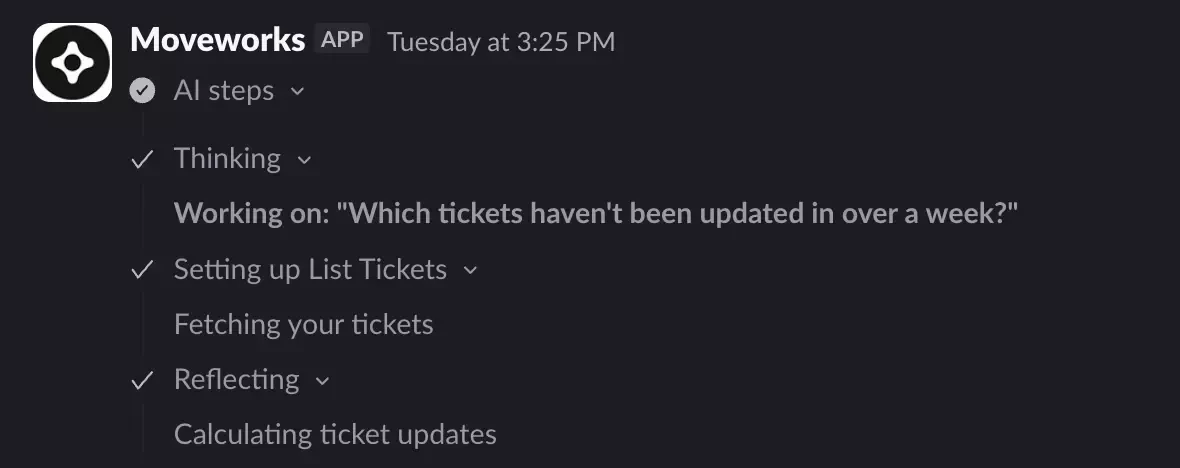
- Reasoning steps: While the Assistant works on a request, employees see a short, collapsible plan of what it is doing instead of waiting on a blank reply.
- Tables: Answers that contain tabular data display as clean, native Slack tables.
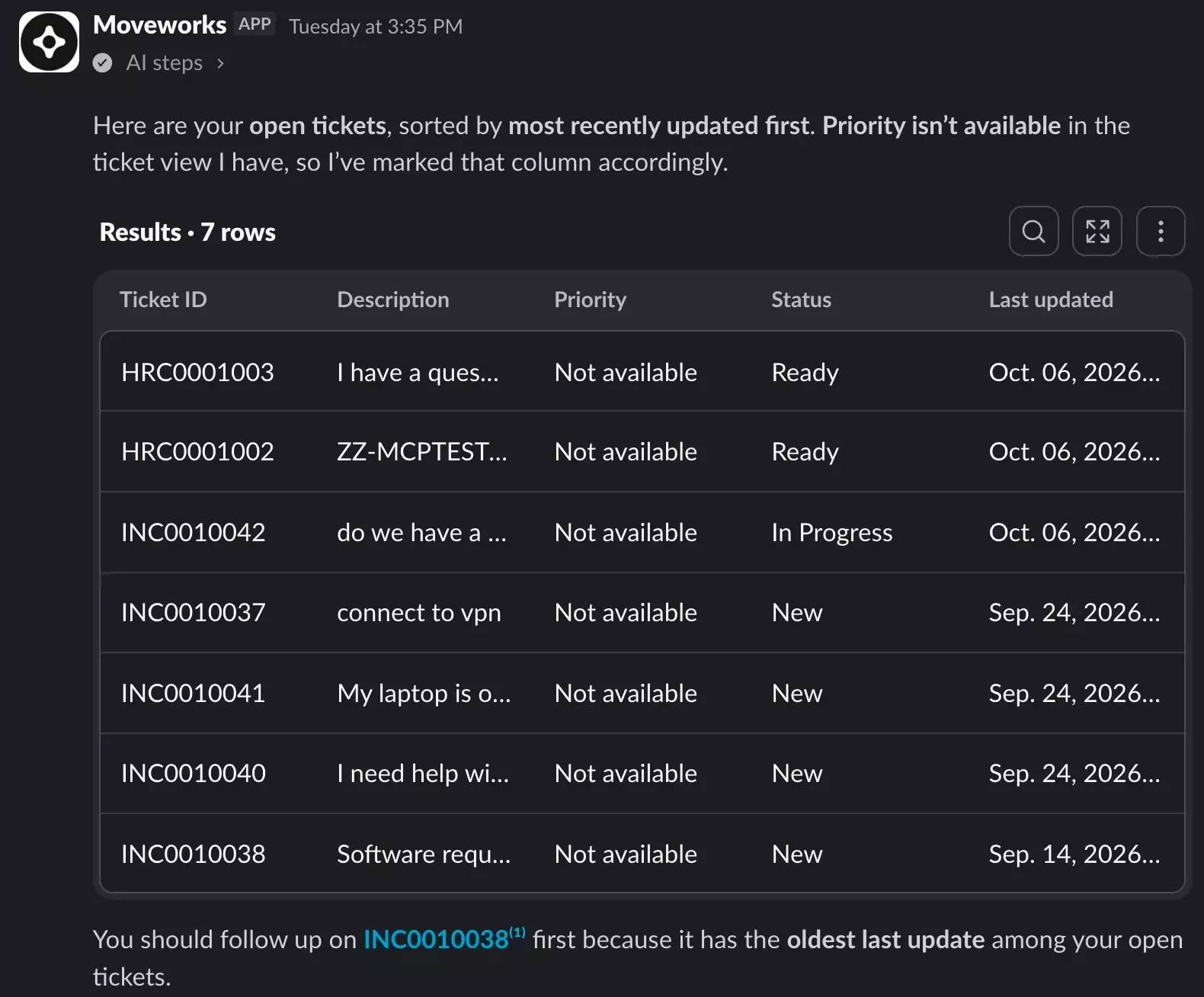
- Rich text: Answers use Slack's native formatting, which makes longer answers easier to scan.
- Streaming answers: Answers appear as they are written, so employees start reading sooner.
Optional features your admins can turn on
These stay off until an admin turns them on.
- Threading: Employees can keep separate conversations in separate threads in their DM with the Assistant, so context from one topic doesn't carry into another. To turn it on, go to Moveworks Setup > Chat Platforms > Manage Chatbots > Chatbots, edit your Slack bot, and select Allow Multiple Threads (Chats). The setting applies to everyone who uses that bot.
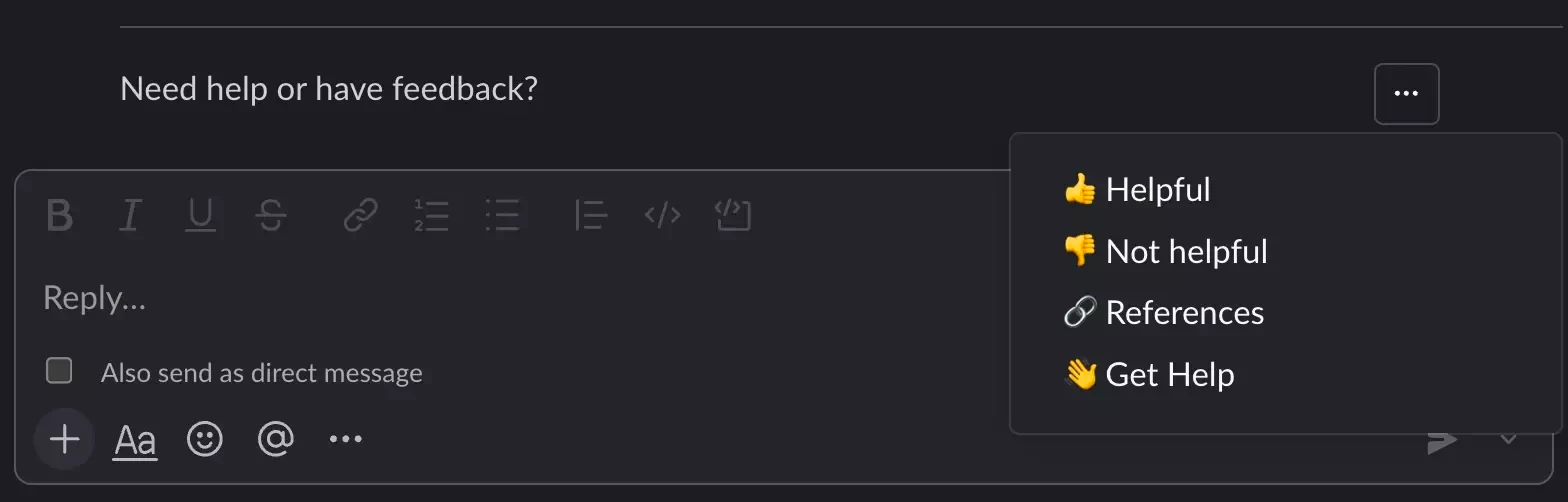
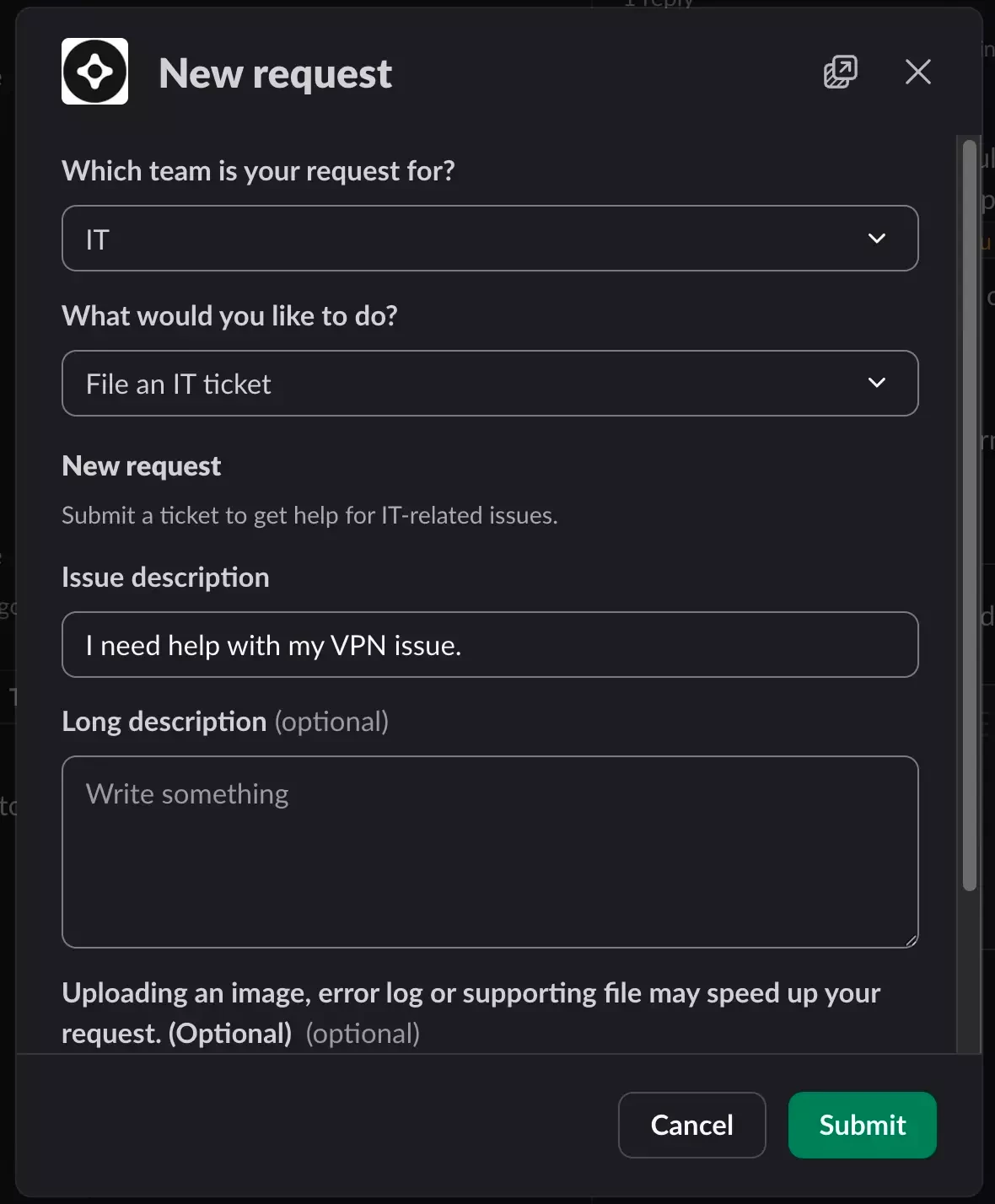
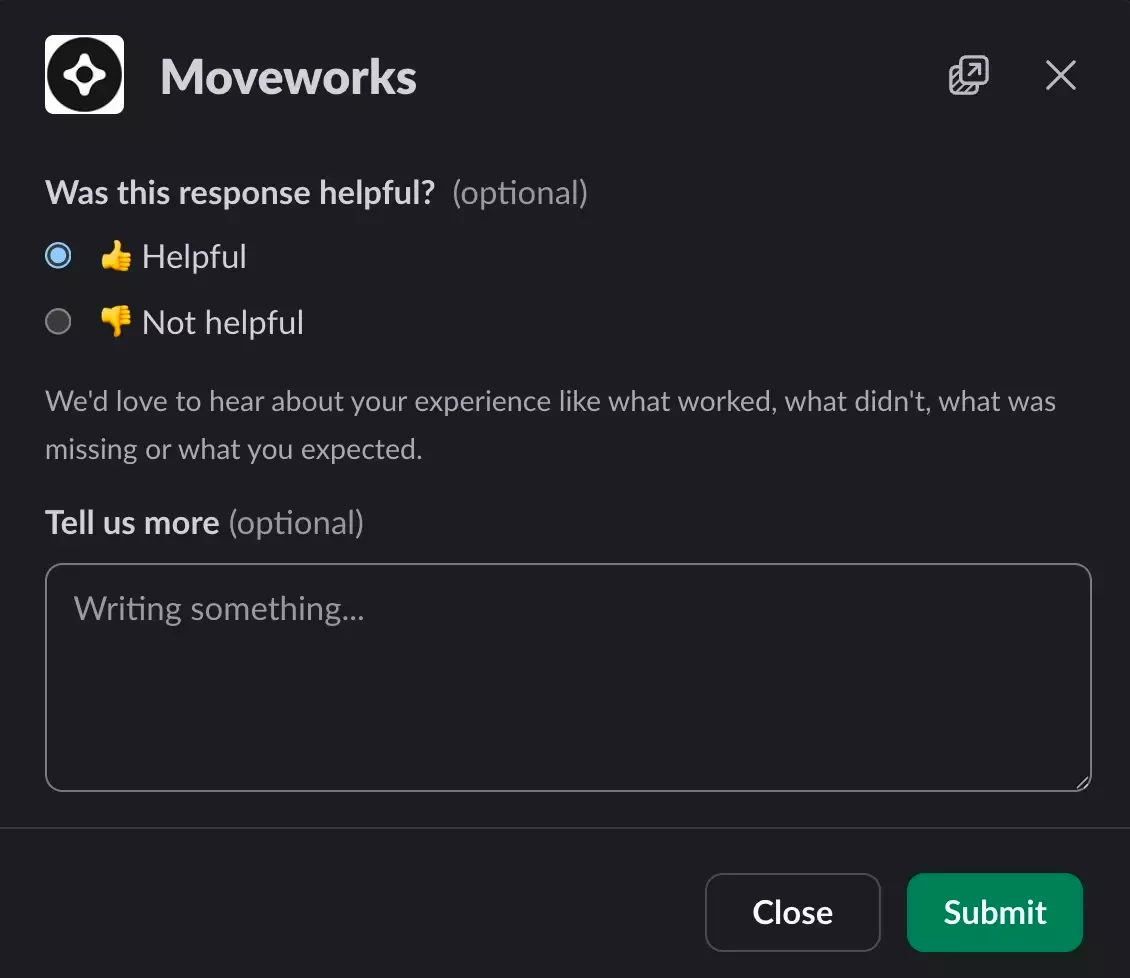
- Native pop-ups: Get Help, References, and feedback open inside Slack from a "..." menu on each answer, instead of sending employees to a web page. Feedback and Get Help move one click deeper, under the menu. To turn it on, go to Moveworks Setup > Chat Platforms > Manage Chatbots > Chatbots, edit your Slack bot, and select Enable Native Slack Modals.
- This allows for Get Help, Feedback, and References pages to be rendered in Slack without the need for a user to be redirected to their browser
-
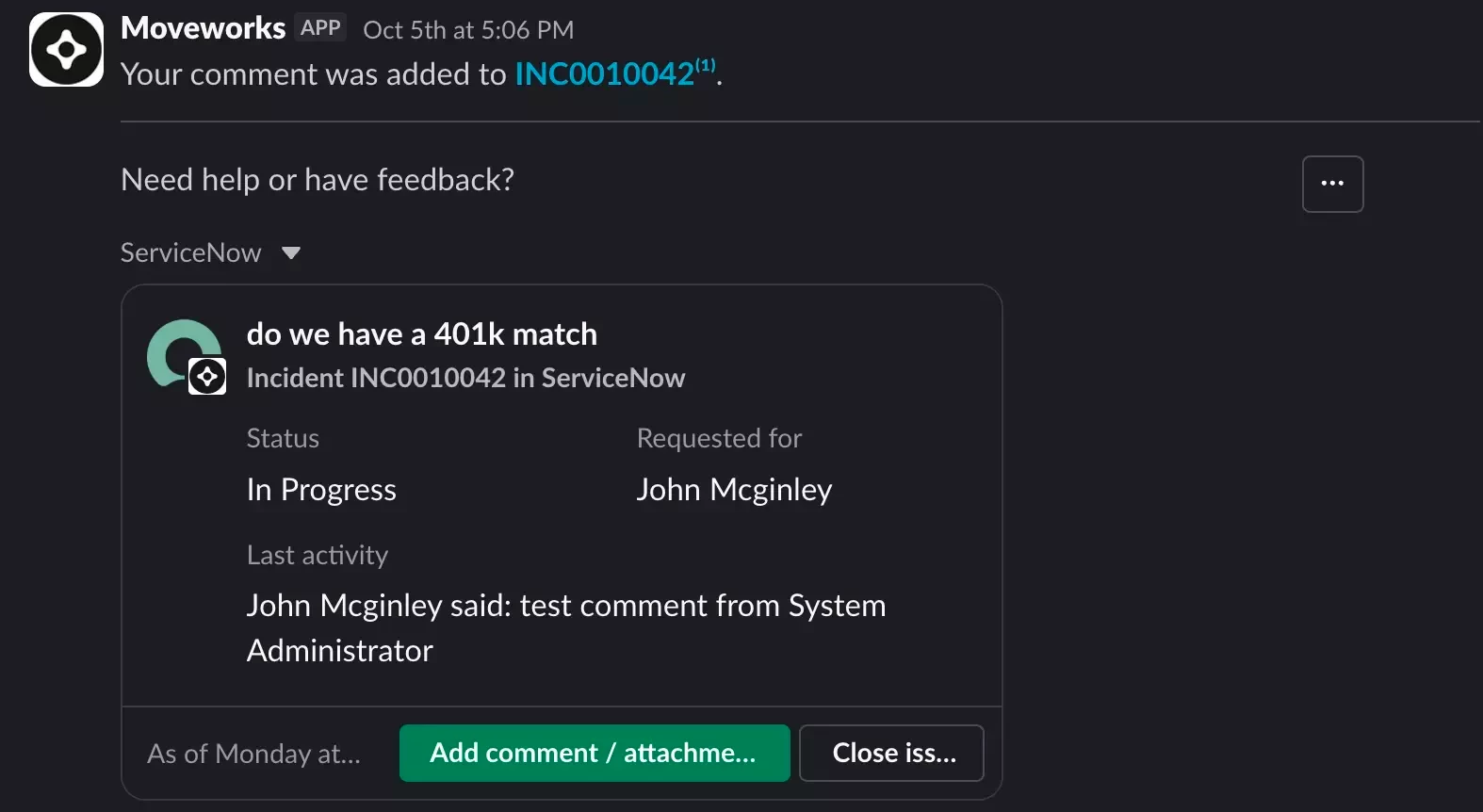
Work Objects: Tickets appear as live cards that employees can act on, for example to add a comment or resolve the ticket, without leaving Slack. This takes two steps.
- Your Slack admin updates the Moveworks app at api.slack.com/apps. Under Work Object Previews, turn previews on, add the entity type slack#/entities/item, and save. Under Event Subscriptions > Subscribe to bot events, add entity_details_requested and save. Then reinstall the app to your workspace.
- In Moveworks Setup > Chat Platforms > Manage Chatbots > Chatbots, edit your Slack bot and select Enable Work Objects.
If your organization uses Channel Resolver:
- Channel Resolver: In support channels, your administrator will be able to choose the following on a per channel basis:
- Whether the Assistant responds to every message
- Which plugins it can use in that channel, including your own Tool Studio plugins.
- Whether replies from Moveworks appear in the channel or via DM
- Configuration:
- Each channel is set separately in Moveworks Setup > Core Platform > Channel Resolver > Channel Settings. When you add plugins to a channel's list, only the plugins on that list run in that channel, so add the built-in ones you want to keep as well.
Good to know
- Feedback and Get Help clicks are tracked the same way with native pop-ups on, so your existing reports keep working.
- The new experience is available in every data center, including GovCloud, at no additional cost.
- This update applies to the Moveworks Assistant in Slack only. Microsoft Teams and other chat platforms are not changing at this time.
Questions?
Reply in the comments below, or reach out to your Customer Success Manager.